How to Download Crestron Firmware– Complete Step-by-Step Guide
Difficulty Level: Beginner Estimated Time: 5–10 Minutes
How to Download Crestron Firmware – Complete Step-by-Step Guide
Author: Audio Visual Gyan
Difficulty Level: Beginner
Estimated Time: 5–10 Minutes
Introduction
Keeping your Crestron device up to date with the latest firmware ensures better performance, improved security, bug fixes, and access to the latest features.
In this guide, you will learn how to download the latest firmware for your Crestron device directly from the official Crestron website. The steps below are easy to follow and include screenshots for reference.
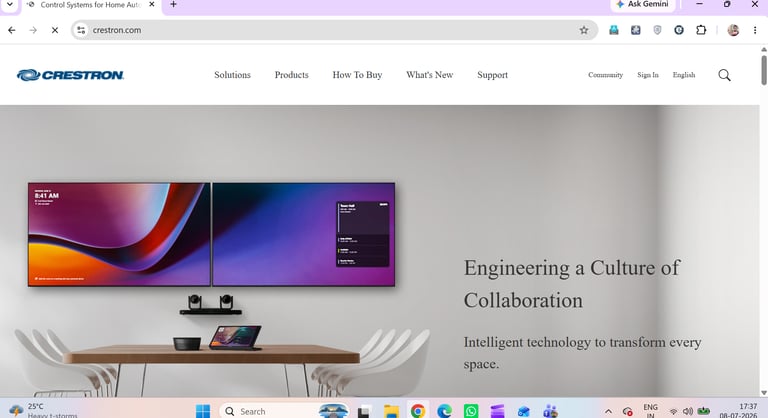
Open the Crestron Website
Open your preferred web browser and visit the official Crestron website.
Website:
https://www.crestron.com
Once the website loads, you will see the Crestron homepage.

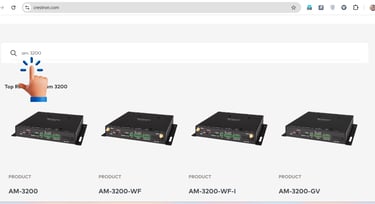
Search for Your Device
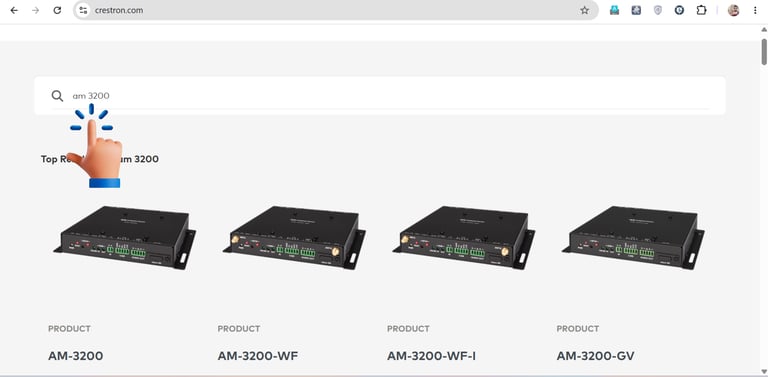
Click the Search (🔍) icon located in the upper-right corner of the website.
Type your device model number into the search box.
Example:
AM-3200
Then press Enter.


Open the Product Page
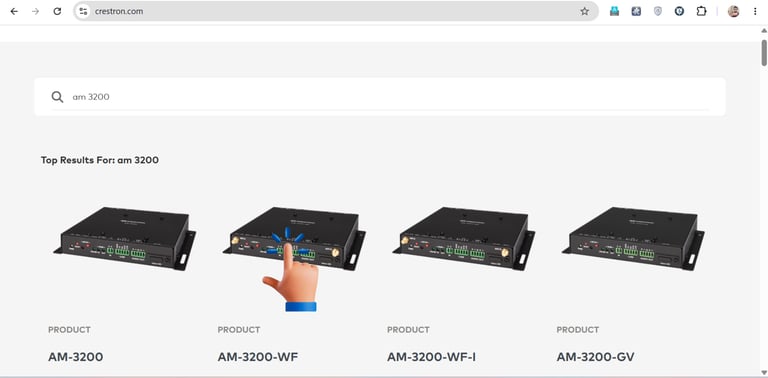
Click on your product from the search results.
For example:
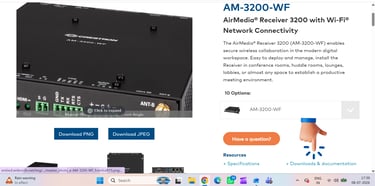
AM-3200-WF
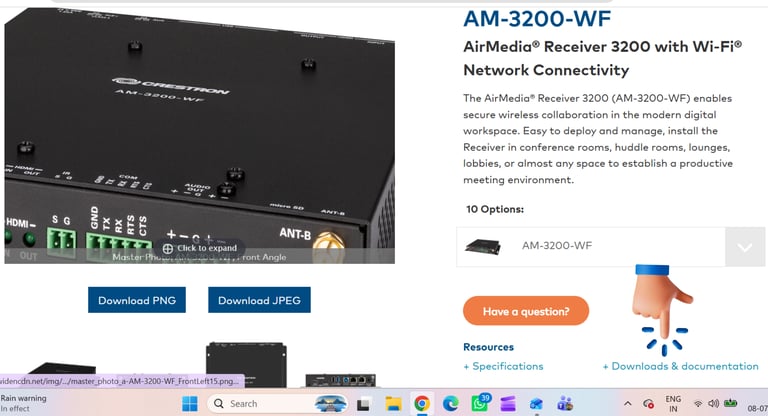
The Product Details page will open.
This page contains product information, specifications, downloads, and documentation.
Scroll down to the Resources section.
In the Resources section, click: Downloads & Documentation
This page contains:
Software
Firmware
Documentation
Certificates
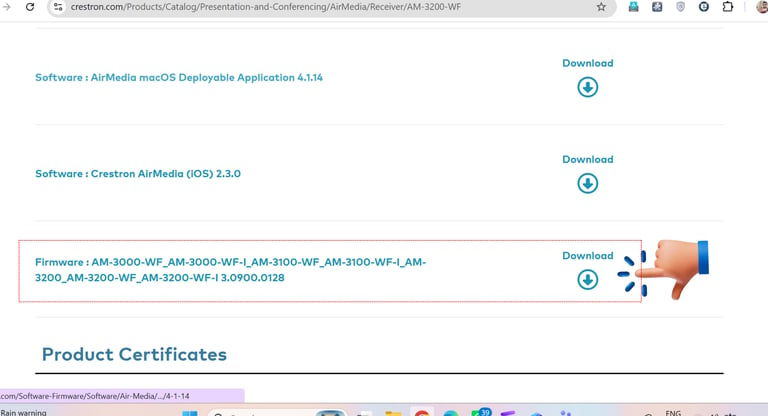
Scroll down until you find the Firmware section.
Download the Firmware
Locate the firmware that matches your device.
Example:
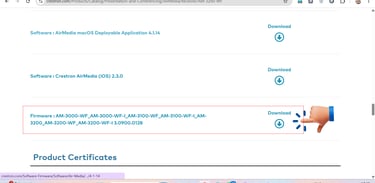
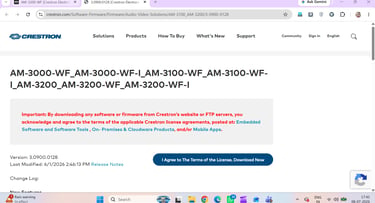
Firmware: AM-3000-WF / AM-3100-WF / AM-3200-WF Version 3.0900.0128
On the right-hand side, click the Download icon.
Accept the License
Agreement
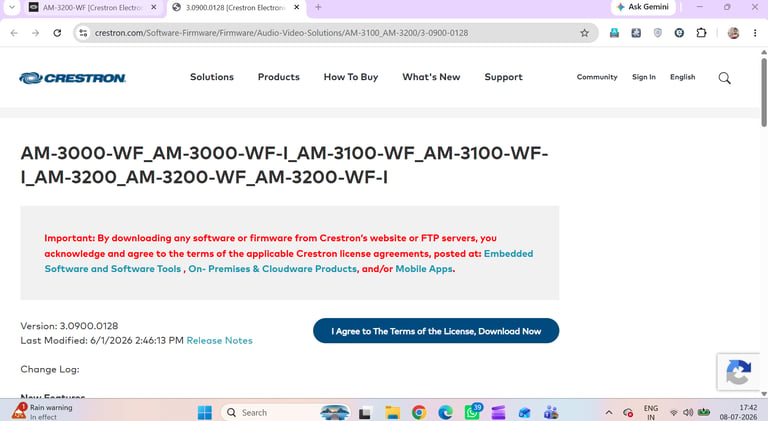
Before downloading, Crestron requires you to accept the Software License Agreement.
Click the blue button:
I Agree To The Terms of the License, Download Now
After clicking the button, the firmware download will begin automatically.
Verify the Downloaded Firmware
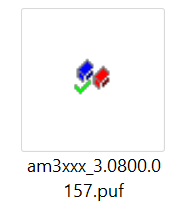
Once the download is complete, the firmware file will be saved to your computer.
Example:
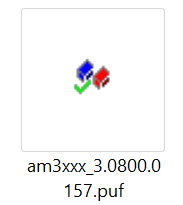
am3xxx_3.0800.0157.puf
The firmware package uses the .PUF file extension.
You can now use this firmware file to upgrade your Crestron device using Crestron Toolbox or the recommended update method for your product.
Important Notes
Always download firmware from the official Crestron website.
Verify that you have selected the correct device model before downloading.
Check the firmware version currently installed on your device before performing an upgrade.
Read the Release Notes to understand new features, fixes, and compatibility.
Never interrupt the power supply during a firmware update.
Installing incorrect firmware may cause the device to malfunction.
Troubleshooting
The firmware download button does not work.
Make sure you are signed in with your Crestron account (if required).
Refresh the page and try again.
Check your internet connection.
Ensure you have accepted the license agreement.
I cannot find my device.
Verify the exact model number.
Use the search function on the Crestron website.
Check if the product has a regional version (e.g., WF, WF-I, GV).
The downloaded file is different from the example.
This is normal.
Crestron updates firmware regularly, so the filename and version number may change over time.
Frequently Asked Questions (FAQ)
Q1. Is Crestron firmware free to download?
Yes. Firmware is available from the official Crestron website. Some downloads may require a Crestron account and acceptance of the software license agreement.
Q2. What is the firmware file extension?
Crestron firmware is typically provided as a .PUF file.
Q3. Can I install an older firmware version?
Yes, if it is available on the Crestron website and is compatible with your device.
Q4. Where is the downloaded firmware saved?
By default, it is saved in your computer's Downloads folder unless you choose a different location.
Conclusion
Downloading the latest Crestron firmware is a straightforward process when using the official Crestron website. Simply search for your device, open the product page, navigate to Downloads & Documentation, select the correct firmware version, accept the license agreement, and download the .PUF file.
Following these steps ensures that you always install the correct firmware version for your device, helping maintain optimal performance, stability, and security.